Spreadsheets
Use the Spreadsheets tool's Formulas function to calculate values in a flow. Enter numbers, text, or Flowize variables in the required Formula field.
The tool evaluates a formula without loading a spreadsheet file. Supply the values directly or through variables rather than referencing cells in an existing workbook.
Before you start
- Open the project that contains the Spreadsheets tool.
- Make sure you have access to configure apps. To use the function in a flow, you also need access to edit that flow. Testing an individual object requires access to that test action. See Roles and restrictions.
- Create any variables you want to use and make sure their values are available when the function runs. See Variables.
For general tool configuration, see Tools.
Configure a formula
- In your project, open Apps and open Spreadsheets.
- In Setup, select Formulas and open Parameters.
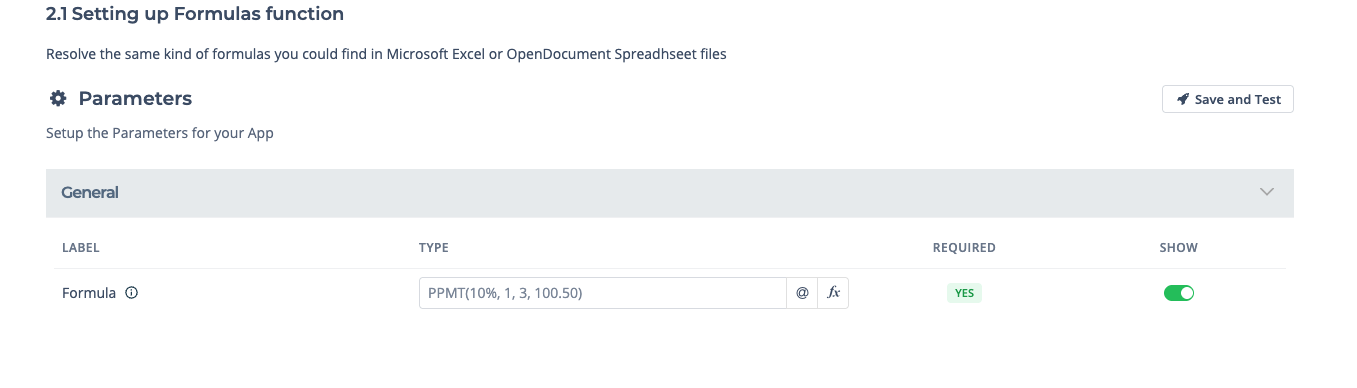
- Expand General and enter a value in Formula.
- Select Save and Test. Review Response data, especially Response body, to check the calculated result and any error message.
- Close the test window and complete the configuration wizard.
Use this syntax in Formula:
| Setting | What to enter |
|---|---|
| Function names | English names, such as SUM, ROUND, and IF. |
| Decimal separator | A period: 100.50. |
| Function argument separator | A comma: SUM(10,20,5.5). |
| Matrix row separator | A semicolon: ;. |
| Leading equals sign | Optional. SUM(10,20) and =SUM(10,20) both work. |
| Text arguments | Text enclosed in double quotes, such as "Ready". |
The example shown in the empty field is a placeholder. Enter your own formula before testing.
If the entire formula is the constant zero, enter =0. A field containing only 0 is treated as empty during calculation.
Examples with fixed values
| Formula | Result |
|---|---|
SUM(10,20,5.5) | 35.5 |
ROUND(12.345,2) | 12.35 |
IF(10>5,"Ready","Pending") | Ready |
Use variables in a formula
Select the @ button beside Formula to insert a variable, or enter its full path. Flowize replaces variables with their values before calculating the formula.
For example, if @data.quantity@ is 3 and @data.unit_price@ is 19.95, use:
ROUND(@data.quantity@*@data.unit_price@,2)
The result is 59.85. Supply numeric values without currency symbols or thousands separators.
For a text comparison, put double quotes around the variable and text values:
IF("@data.status@"="paid","Ready","Pending")
If @data.status@ is paid, the result is Ready. Test with representative values before using the formula in a published flow.
Use the result in a flow
- Open a Draft flow that you can edit.
- Find Spreadsheets in the Tools palette and add its Formulas function to the canvas. Connect it to the relevant steps. See Create a flow for the general process.
- Open the object and review Formula in Parameters, if the field is shown. Select Test to check it.
- Open Incoming response. Find the
resultrow and copy its variable from Where it is saved to use in a later step. - To store the result in your data record, select a Data Schema variable in Saved to Data Schema for the
resultrow. - Select Apply, then save and test the flow.
Copy the variable shown for your object rather than assuming that every Formulas object has the same variable path.
If the tool's configuration hides Formula in the flow, update the formula in the tool's Parameters step instead. See Tools for parameter visibility settings.
The test's Response body contains these fields:
| Field | Meaning |
|---|---|
result | The calculated value, or an error value if calculation fails. |
success | The success indicator returned by the tool. Check result and message as well. |
formula | The formula evaluated after variable substitution. |
message | An error explanation when one is available; otherwise, an empty string. |
The response fields available for mapping can differ from those shown in the test response. Use the result row in the flow object's Incoming response to retrieve the calculated value.
Supported formulas and limitations
The tool supports a subset of spreadsheet formulas. The examples above use supported functions. Do not assume that every Excel or OpenDocument spreadsheet function works; for example, XLOOKUP is not supported.
Formulas that depend on cells in an uploaded workbook cannot use that workbook's data here. Replace those cell references with literal values or Flowize variables.
If a formula returns an array, the tool returns its first value rather than the whole array.
Test each formula with the values it will receive, including empty values and text where relevant.
Validation and errors
Formula is required. If required fields are empty during configuration, Flowize highlights them and can display Some information is missing, with the message Some required fields are not fulfilled, please fill in all the mandatory fields.
A calculation error can appear in Response body even when HTTP code is 200. Check the returned values before using the result.
| Error value | What to check |
|---|---|
#DIV/0! | A divisor is zero. Check the numbers and variable values used in division. |
#N/A | No value is available for the calculation. |
#NAME? | Check the function name and parameters. Text arguments may need double quotes. |
#NULL! | Check the intersection specified in the formula. |
#NUM! | Check for a number that the calculation cannot use. |
#REF! | Check for an invalid cell reference. Supply values directly or through Flowize variables. |
#VALUE! | Check argument types and operators. |
A division-by-zero result (#DIV/0!) can return success: true with an empty message. An unsupported function can also return null as its result without a message and still report success. Always check result as well. Other failures can return HTTP code 400 with an explanation in message.
Was this article helpful?