Create and configure a layout
A layout is a reusable document template. It defines the page formats and orientations used by a document, and the areas where document content is placed. Use layouts to keep the structure and appearance of documents consistent.
Open Layouts
- Open Documents.
- Select Layouts at the top of the page.
Create a layout
- From the Layouts overview, select New layout.
- In Information, enter the required Name. Add a Description if needed.
- Select Next.
Flowize opens the layout editor.
Configure layout settings
Pages
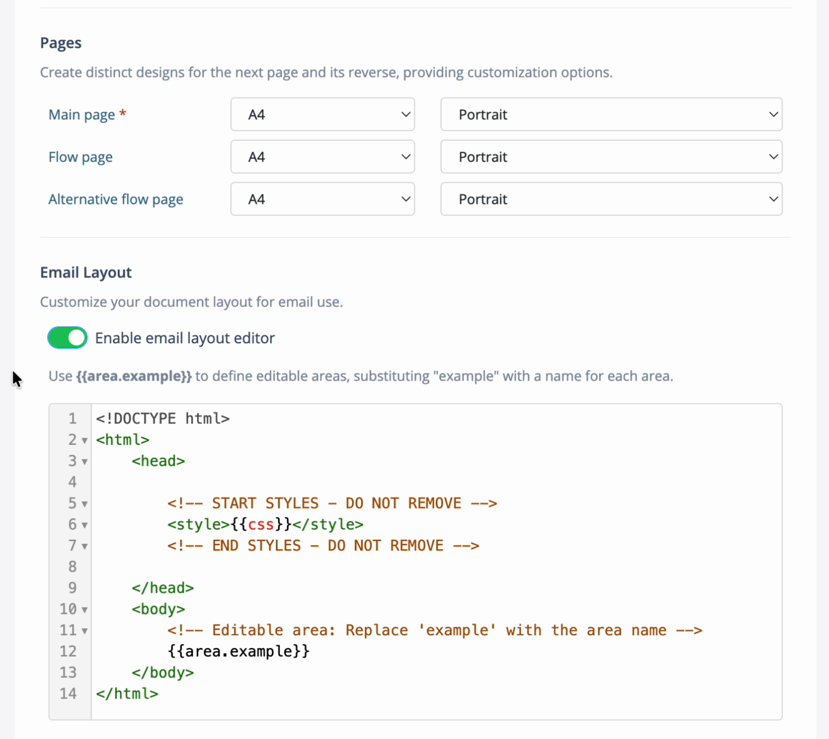
Use Pages to choose a page format and orientation for each page design:
- Main page: the default page design.
- Flow page: the design used for flowing content.
- Alternative flow page: an additional design for flowing content.
Email layout
To customize the layout for email use, enable email layout editor. Flowize then displays an HTML editor where you can enter the email layout markup by substituting the placeholder with the necessary area names. You can add also a CSS in this editor.
Select Test HTML to preview the HTML output. If the preview reports an error, check that the HTML is valid and that the email layout editor is enabled when the layout is intended for email output.
Configure areas
The Areas configuration section controls the regions available to a document. The order of the areas affects the order in which sections are generated and accessed by accessibility tools.
Set the default unit
Under Areas, select the Set default unit for areas value. The unit is used for area dimensions and positions.
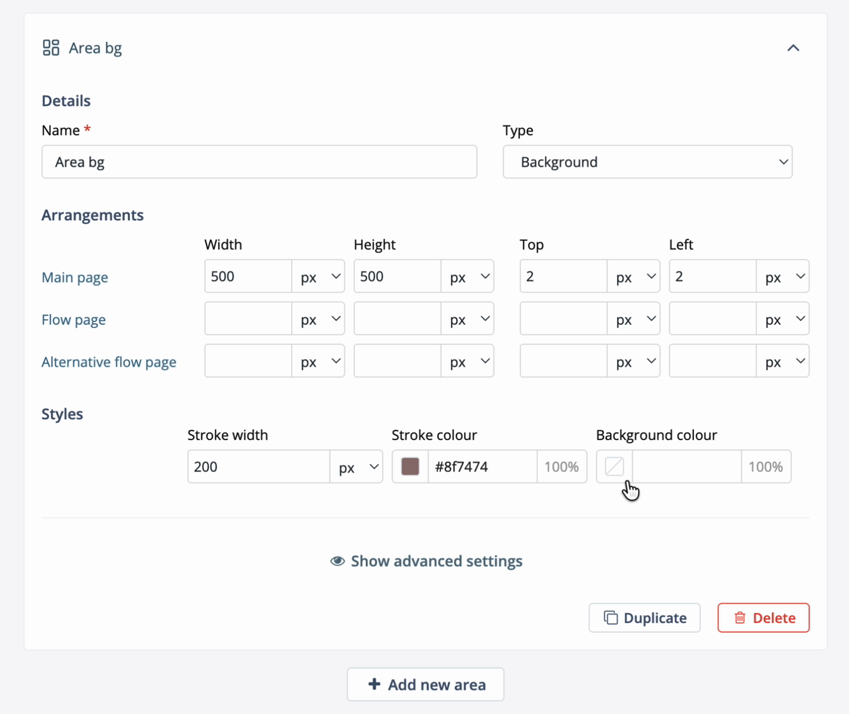
Add and configure an area
- Select Add new area.
- Enter a required Name or continue with the default name.
- Select an area Type:
- Background for a visual background area.
- Print Area for an area that receives document content.
- Configure the area for each page design.
- Continue configuring the layout, then select Save in the layout toolbar.
Each area includes the following settings:
| Setting | Description |
|---|---|
| Width and Height | Set the size of the area. |
| Top and Left | Set the area position on the page. |
| Stroke width | Set the width of the area border. |
| Stroke colour | Set the border colour and opacity. |
| Background colour | Set the area background colour and opacity. |
The Width, Height, Top, and Left values can be configured separately for the Main page, Flow page, and Alternative flow page. Use the unit selector next to a value when a different unit is required.
Use the area actions to Duplicate an area or Delete it. Select Show advanced settings to expose the JSON parameters editor for additional area configuration.
If an area shows a warning icon or fields highlighted in red, complete or correct the missing area dimensions and positions.
A layout is valid if all areas are configured correctly. It can be saved with errors, but it cannot be published. It will be flagged as invalid in the layout overview.
Use a layout in a document
Layouts define the document canvas in the Documents editor. When you create a document, you will be asked to choose a layout. For more information, see Create and preview a document.
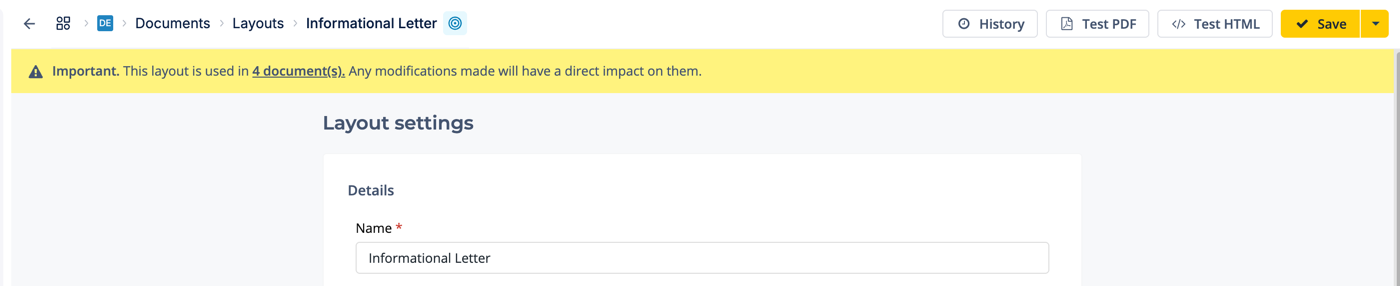
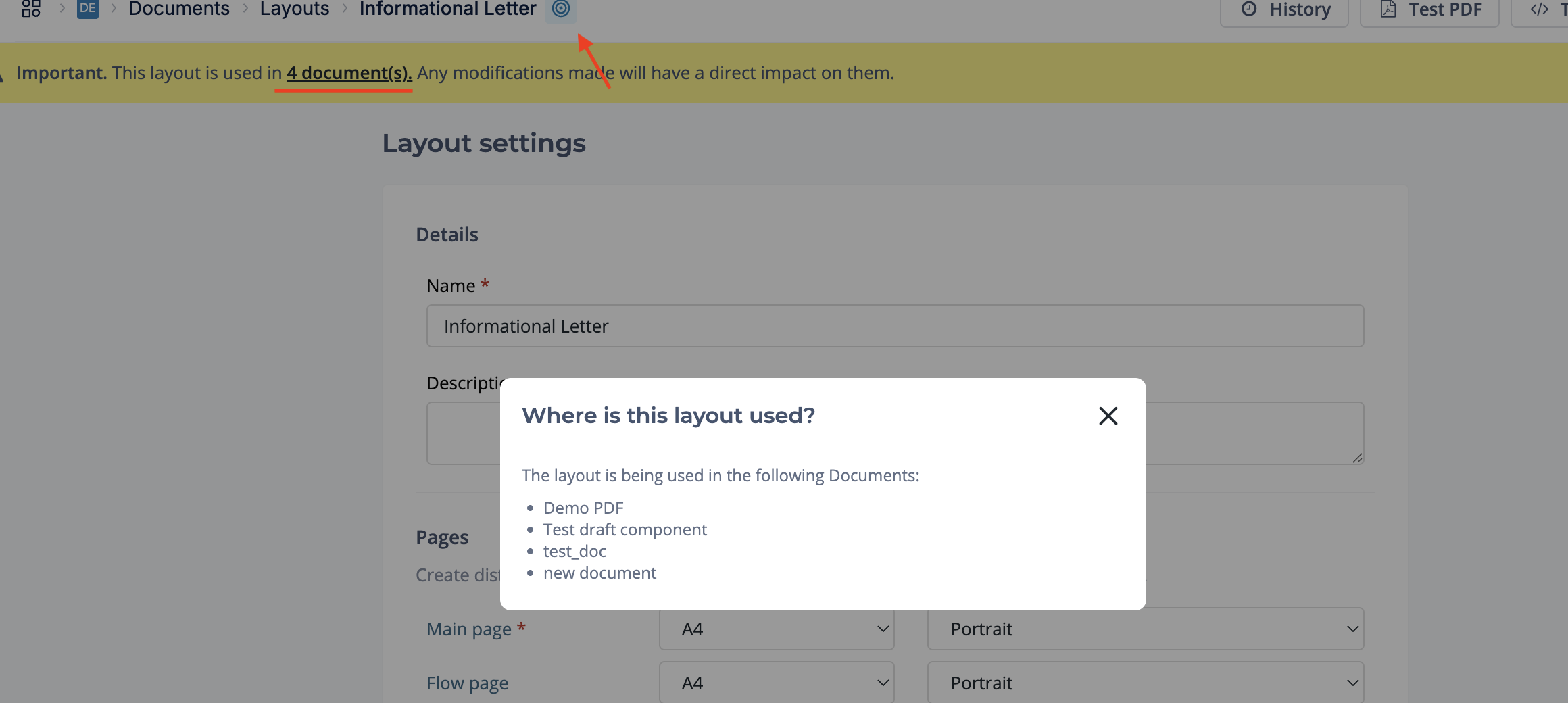
By clicking on underlined text in the banner, in the target icon next to the layout name, or in the overview table in the column "Times used" a dialog will show documents where the layout is used.
A layout in use cannot be deleted.
Test the layout
Select Test PDF to open the generated PDF in the embedded viewer. Use the data-record selector to preview the layout with an existing record, or select No data record to test the layout without record data.
Open the preview options to inspect the output with settings such as Debug, CMYK, and PDF compliance.
Save and publish a layout
Select Save to keep the current layout changes. Use the dropdown menu next to Save when you need to publish the layout.
Export/import a layout
Select Export/Import from the dropdown menu next to Save.
- Export downloads the layout as an
.encfile. - Import loads a layout from an
.encfile.
Was this article helpful?