Onboarding to Flowize
Use the sign-in page to access Flowize with your email and password, or with an available single sign-on provider. If you are invited to Flowize, use the link in your invitation email to create your account. If you cannot sign in because you forgot your password, start password recovery from the same page.
Create an account from an invitation
Flowize accounts can only be created from an invitation. You need to receive an invitation email and open the link in that email to access the sign-up page. There is no separate self-service account creation flow without an invitation.
The invitation link expires after 14 days. After that, you need to request for a new invitation to your administrator.
The sign-up page shows the organization you were invited to join.
If you open a valid invitation while signed in to another account, Flowize prompts you to Switch account so you can continue with the invited account.
The sign-up form includes:
- First name
- Last name
- Invitation email
- Password
The Invitation email field shows the email address that received the invitation.
To create your account from an invitation:
- Open the link from your invitation email.
- Confirm that the sign-up page shows the expected organization.
- Enter your first name and last name.
- Create a password.
- Select the checkbox to agree to Flowize's Terms of Service.
- Select Create account and join.
Sign in to Flowize
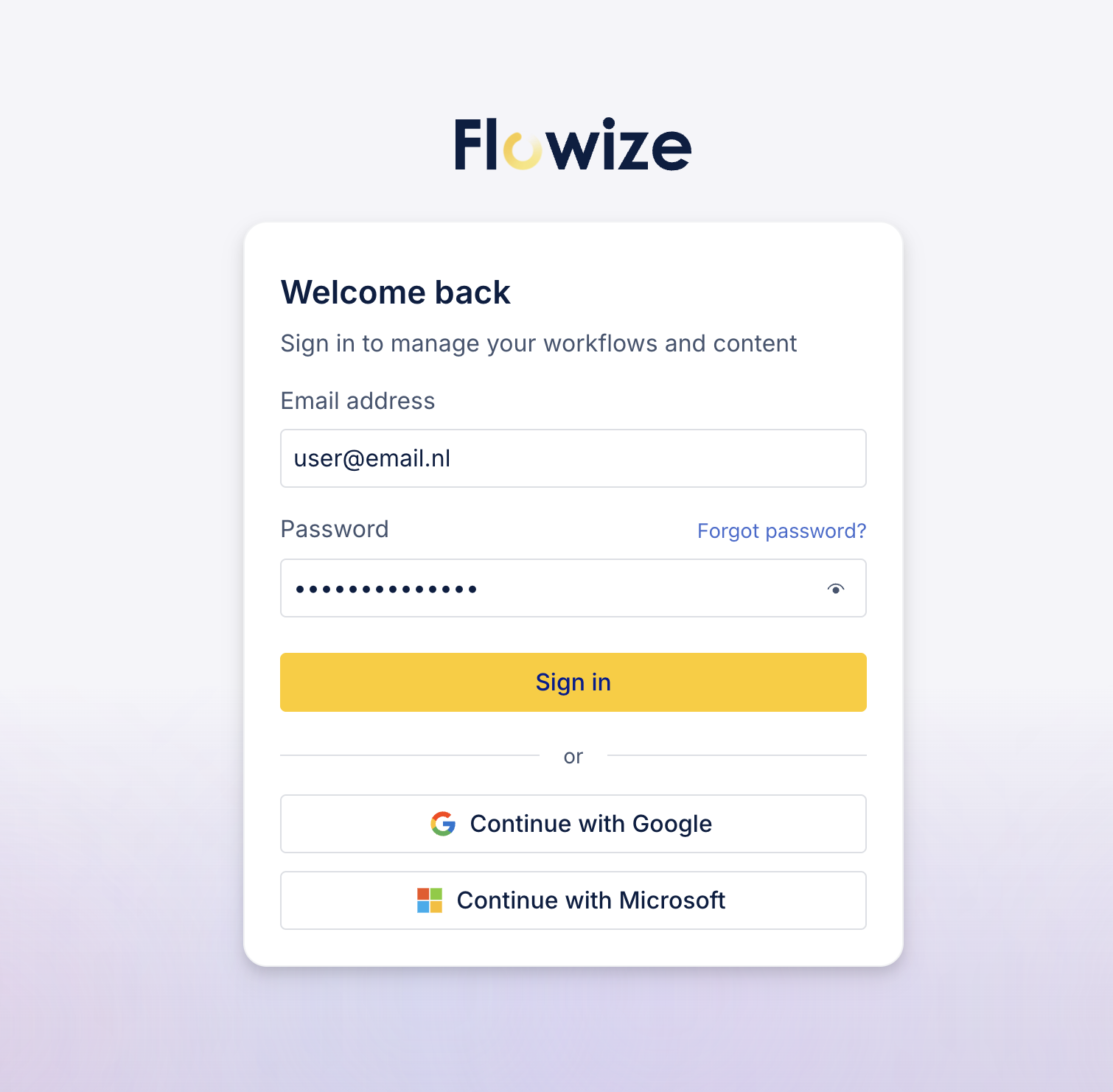
The sign-in page appears when you open the Flowize sign-in route. If you are already signed in, Flowize redirects you to My Work.
If Google or Microsoft sign-in is available for your environment, the page also shows Continue with Google and Continue with Microsoft buttons below the email and password form.
When you sign in with your email and password, Flowize sends you to the two-factor authentication page if your personal setting or an organization requirement calls for verification. Otherwise, a successful sign-in redirects you to My Work.
Complete two-factor authentication
Flowize asks for a verification code after accepting your email and password if two-factor authentication is enabled in your user settings or required by an organization you belong to. Turning off your personal setting does not remove an organization requirement.
Depending on your two-factor authentication setup, use one of these methods:
- Enter the code sent to your email.
- Enter the code from your authenticator app.
The two-factor authentication page asks for a 6-digit code. When email authentication is available, you can request a new email code. If more than one two-factor method is available, you can switch between email and authenticator app verification.
If an email code can no longer be used after too many incorrect attempts, select Resend code to request a new one. If Flowize asks you to wait before trying again, wait before verifying another code.
After Flowize accepts the code, sign-in continues and redirects you to My Work. You can also return to sign in from the two-factor authentication page.
Sign in with Google or Microsoft
When single sign-on is configured, use Continue with Google or Continue with Microsoft to start the provider sign-in flow.
The first time you use single sign-on, Flowize may ask you to confirm your account password before signing in.
Google sign-in requests a Google token and then continues the Flowize sign-in process. Microsoft sign-in redirects you to Microsoft and returns through the Flowize sign-in callback before continuing the Flowize sign-in process.
The first time you sign in with Google or Microsoft, Flowize asks for a two-factor verification code. Subsequent single sign-on attempts do not require a code.
Recover your password
Select Forgot password? on the sign-in page to start the password recovery flow.
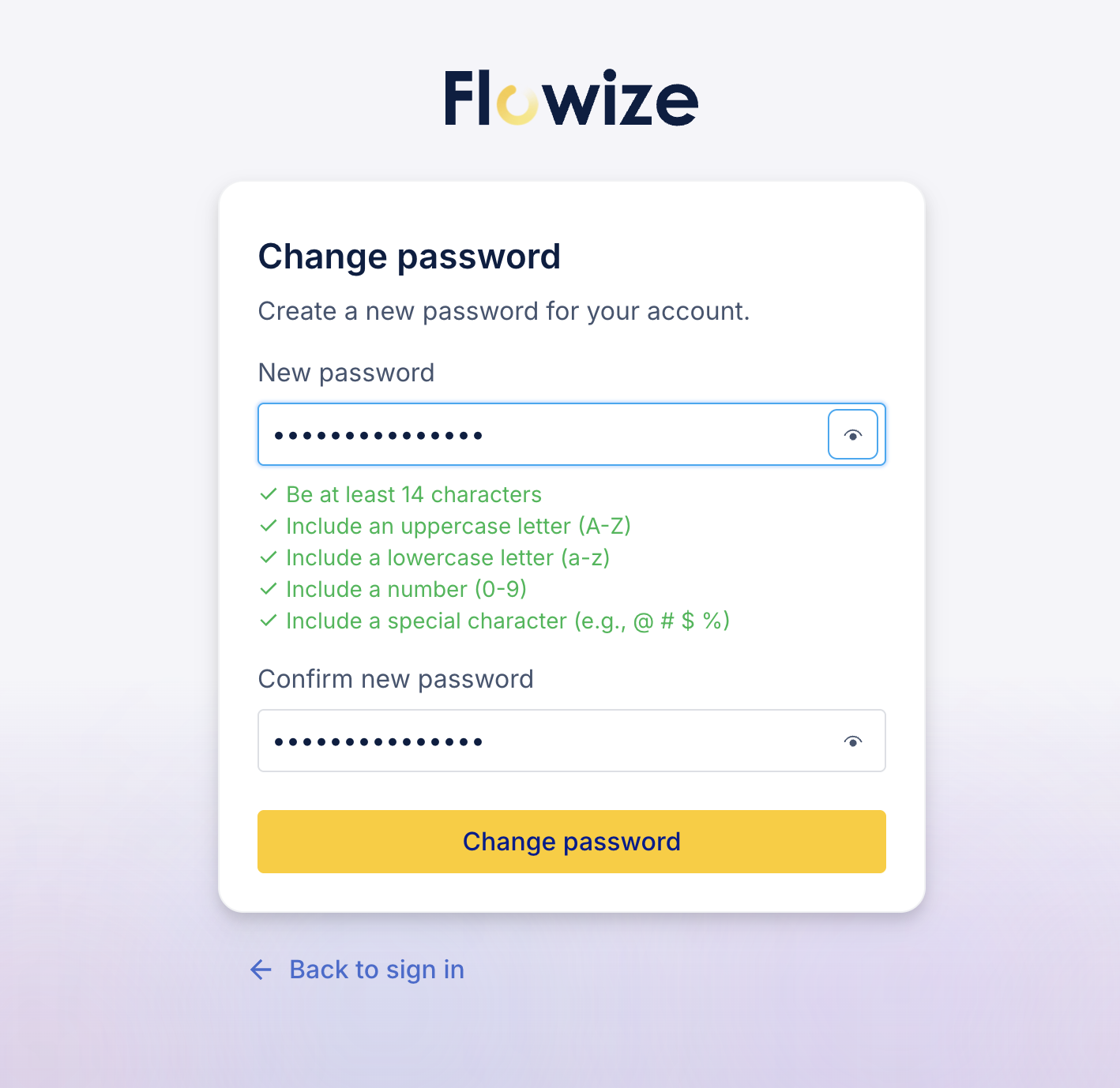
The reset password page lets you request a reset email and return to sign in. After you open the password reset link, the change password page lets you create a new password for your account.
Change your password
As you enter a new password, Flowize shows password requirements and indicates which requirements are satisfied
Use Back to sign in if you need to return to the sign-in page instead of changing your password.
Was this article helpful?