Using tags in Flowize
Use tags to label Contents and Flows and to control which items a restricted user can edit. This guide explains how to use the tag selector, manage organization tags, and configure tag-based access restrictions.
Full admins and project admins can create and edit tags and assign them to Contents and Flows. Only full admins can assign or change tag restrictions for users.
Use the tag selector
The tag selector lets you view and assign tags to Contents and Flows, subject to your permissions.
In a list, click the item's Tags field or + Add tag. You can also open the selector from the tags shown beside a Flow's name when viewing it.
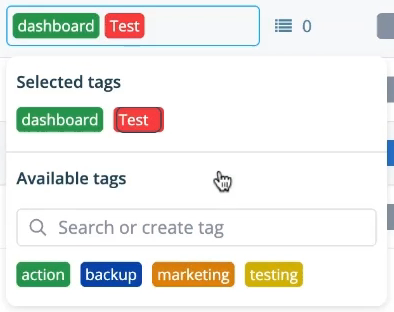
The selector shows tags assigned to the item and available organization tags.
- Selected tags: tags currently assigned to the item.
- Available tags: existing tags you can select.
- Search or create tag: a field for finding a tag by name.
Assign or remove an existing tag
- Open the item's tag selector.
- Find a tag under Available tags, using the search field if needed.
- Click the tag to assign it. It moves to Selected tags.
- To remove an assignment, hover over a selected tag and click its ×.
Removing a tag from an item only removes it from that item. The tag remains available for use elsewhere in the organization.
Manage organization tags
Tags belong to the organization. Full admins and project admins can create, rename, and recolor tags. Changes to a tag's name or color appear wherever that tag is used. Managing tag restrictions for users remains limited to full admins.
Create a tag
- Enter a new name in Search or create tag.
- Use the palette button to choose a color.
- Click Add tag.
- Select the new tag from Available tags to assign it to the item.
Edit a tag
To edit an existing tag, open its ... menu and choose Edit name or Change color.
Delete a tag
Open the tag's ... menu and select Delete tag. Review the confirmation, then click Delete.
Deleting a tag permanently removes it everywhere it is used in the organization and cannot be undone. This differs from removing a tag assignment from one item.
A tag assigned to a user for access restrictions cannot be deleted. Its use in access restrictions must be reviewed first.
Using tags to control editing access
Tags let full admins control which Contents and Flows a user can edit. When tag restrictions are enabled, the user can edit items associated with their assigned tag. Tag restrictions can apply to all types of Contents, as well as Flows.
Restricted users can still see Contents and Flows they cannot edit. The tags determine which actions they can perform on those items.
Set up tag restrictions for a user
As a full admin:
- Open the Users view and select the user.
- In Details, find Restrict user access.
- Enable User restricted to edit on these tags.
- Select the tag for the Contents and Flows the user should be allowed to edit.
- Click Save.
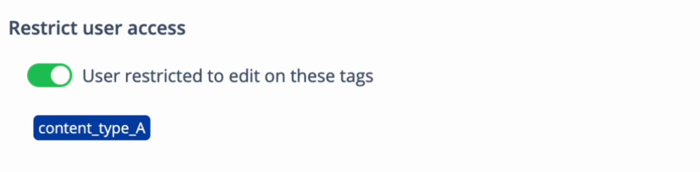
Tag restrictions enabled for a user, with content_type_A selected.
The users overview displays the assigned tag in the Restrict by tag column, so you can check each user's restrictions.
For example, if you select content_type_A, the user can edit documents or Flows associated with that tag. Items without a matching tag have restricted actions.
Working with tagged items
Edit Contents and Flows
Tag restrictions apply when working with both Contents and Flows. Check the Tags column beside each item.
When an item shares a tag with the restricted user, they can open it, make changes, and click Save. Flowize checks the tag permissions automatically.
When an item does not have a matching tag, editing actions are restricted. Hover over a disabled action to see a permission message, such as "You don't have the rights for this action."
All types of Contents can be affected by tag restrictions.
Create new content
When a restricted user creates and saves a new component, Flowize automatically assigns the tags associated with that user's permissions. There is no need to select those tags manually.
This keeps the new component within the user's authorized editing scope.
Delete content and tags
The actions available in content tables depend on the user's permissions. A restricted user can only delete content with a matching authorized tag.
Deleting a tag is a separate action. Flowize prevents you from deleting a tag assigned to one or more users. A message explains why deletion is blocked and directs you to your organization manager for assistance.
If an action is unavailable
Check the item's tags and hover over the disabled action for an explanation. If you need to edit Contents or Flows outside your assigned tags, ask a full admin to review your access.
Need more help
If this guide has not answered your question, contact Flowize Support for help. Include a brief description of what you are trying to do and any message shown in the platform.
Was this article helpful?