URLs
Urls let you create customer-specific endpoints that trigger flows, ingest records, or work with webhook-driven dynamic behavior.
Overview
Open URLs page on Triggers section. You will get the list of available configurations.
To create a new one, click on New URL at the top.
URL types
| Name | Description |
|---|---|
| Direct URL | Send records to the API by simply performing a post to a certain URL. |
| Sync URL | Send records to the API with synchronous and customize response. |
| Dynamic URL | Insert records or webhooks depending if a certain ID has been already inserted |
Direct URL
Direct URLs send records to an endpoint through a POST request.
Use this type when you want to send data directly to a flow without synchronous response handling.
Sync URL
Sync URLs send records to the API and return a synchronous response.
The synchronous response will be received when the workflow stops in the following cases:
-
Reaching the first Stop, Run a flow, Move to flow or End object.
-
When the workflow has finished with an error status, the API will send back the response.
The Sync URL has a particular app that we can use inside the workflow to get back a custom response depending on some decisions made before. Later on, we will explain on detail how it works.
This type also includes a Synchronous custom response tab on the read page, where you can define:
- Request format
- Headers
- Success payload
- Error payload
Dynamic URL
Dynamic URLs support record insertion with webhook-driven behavior when the selected ID already exists.
When you open a dynamic URL, you can manage its webhook setup from the read page.
Create a URL
To create a URL:
- Open
Triggers>URLs. - Select
New URL. - Choose the URL type.
- Enter the required fields.
- Select the interface and flow.
- Adjust priority if needed.
- Save the URL.
Common fields
- Name: The display name of the URL.
- Interface: The payload schema used by the URL.
- Flow: The flow triggered by the URL.
- Priority: The execution order used when records are processed.
Type-specific fields
- Batch processing: Available for direct POST URLs.
- Synchronous process communication: Available for sync URLs.
Read and edit a URL
After saving, the read page shows the generated endpoint and the URL configuration.
From the read page you can:
- Review the endpoint URL
- Rename the URL
- Change the interface or flow when the URL is not locked to a flow start object
- Adjust priority
- Configure batch or synchronous behavior where available
- Manage dynamic webhooks for dynamic URLs
- Review the cURL request example for direct and sync URLs
Synchronous custom response
The synchronous custom response tab appears only for URLs that support synchronous processing.
On this tab you can:
- Choose the request format:
JSON,XML, orRAW - Manage custom headers
- Define success payload output
- Define error payload output
You can prepare a Global response if the workflow is stopped in one of the following points:
- Reaching the first Stop, Run a flow, Move to flow or End object.
- When the workflow has finished with an error status, the API will send back the response.
The response editor supports variable insertion using @.
The request format is only a helper to colorize the editor depending on the payload format selected. Right now is supported JSON, XML and Raw but the important thing that you can define your custom payload, and it will be returning it with all variables replaced.
Sync URL App
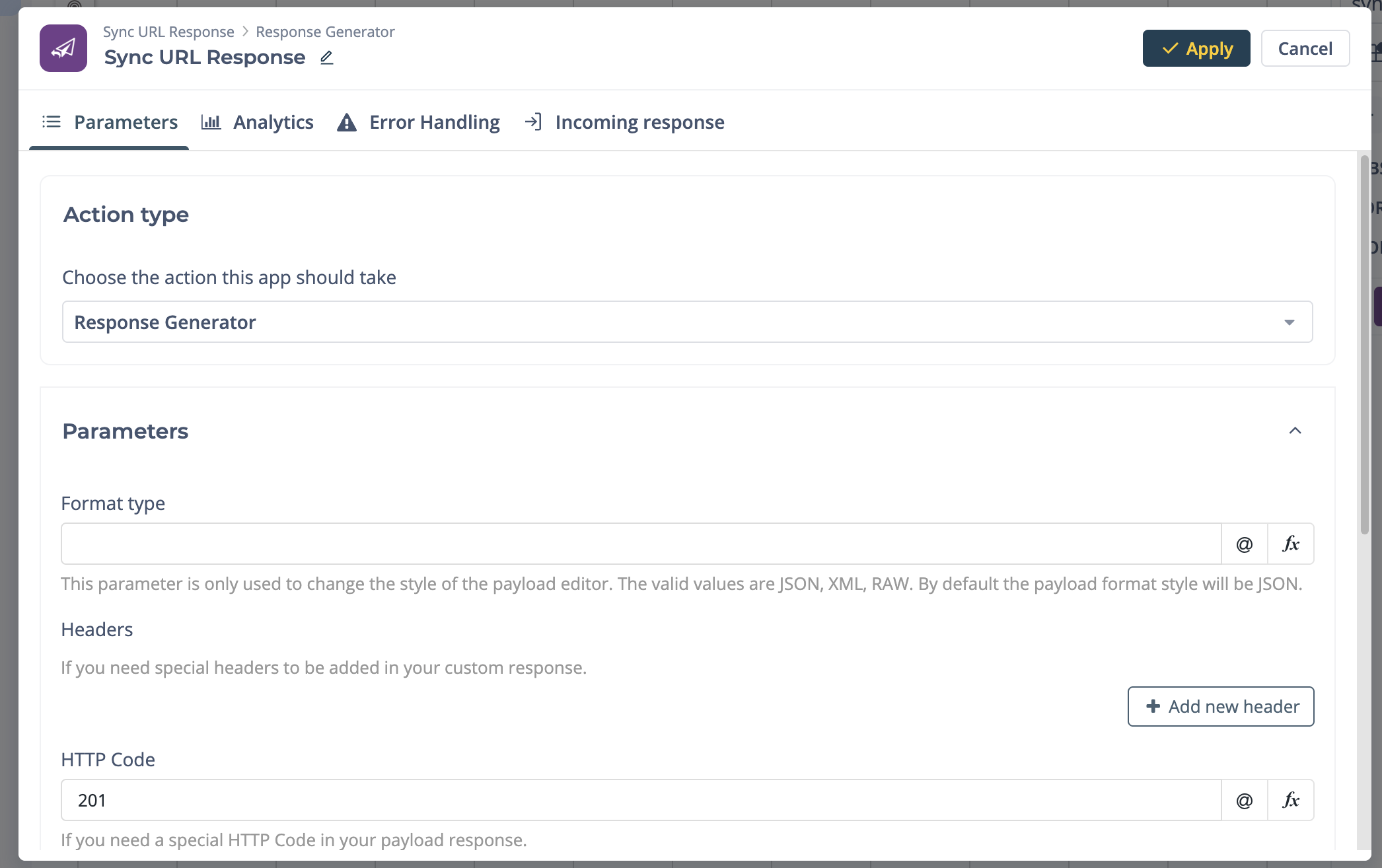
The Sync URL has an App that allows you to customize your synchronous response within a workflow. If the workflow contains this App before stopping at one of the above points commented then it will return the settings you previously created on this App. To start using the App:
- You need to install it from the project menu “Apps”.
- After dragging the App to the workflow, we can configure different responses depending on the decision output.
- To configure the App, you can set the “Success answer” or “error answer” object.
Above is shown a list of parameters that we can configure in the same way as we configured for the Global response of the Sync URL.
Setup Webhook
Once the dynamic URL is saved, you can configure webhooks. A webhook can start a flow when the incoming status value matches the string you define.
Example:
- If you set the matching string to
approved, the webhook runs only when the incoming payload includes"status": "approved". - If the payload includes
"status": "pending", that webhook is skipped.
Was this article helpful?